Using iOS Application File Sharing
iOS file sharing, available in iOS 4 and above, allows you to manage files associated with an app and copy those files to and from your desktop using
iTunes (Version 9.1+). DataVault uses iOS file sharing to create password protected, encrypted backups. This provides the flexibility to manage
multiple, dated backups of the information stored in DataVault without having to backup your entire device or install additional software on your desktop.
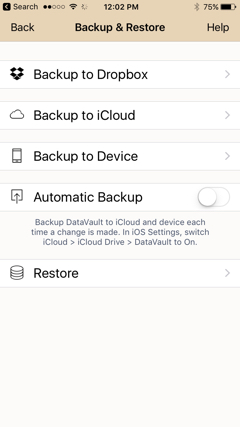
Switching Automatic Backup to ON will make a backup to iCloud and to your device each time you modify an item. DataVault will save the last seven automatic backups and
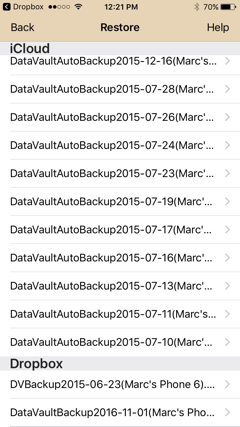
delete the older ones. Filenames of automatic backups will include AutoBackup.
Please Note: There are a few important considerations when using this method.
- iOS file sharing removes files when an app is deleted. To move a backup to your desktop for permanent storage, or to move your DataVault information
to another device, you need to use iTunes desktop.
- To restore from a backup, the DataVault master password must be the same as the one used when the backup was created.
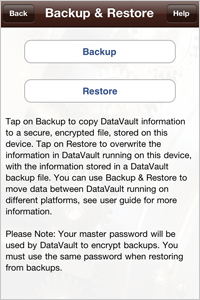
To backup DataVault using iOS application file sharing and move the file to your desktop, follow these steps.
- Start DataVault for iOS and tap on the tools icon to display the Options menu.
- Tap on Backup & Restore.
- Modify the default file name if desired and tap on Save in the navigation bar.
- Start iTunes on your desktop, connect your device and synchronize.
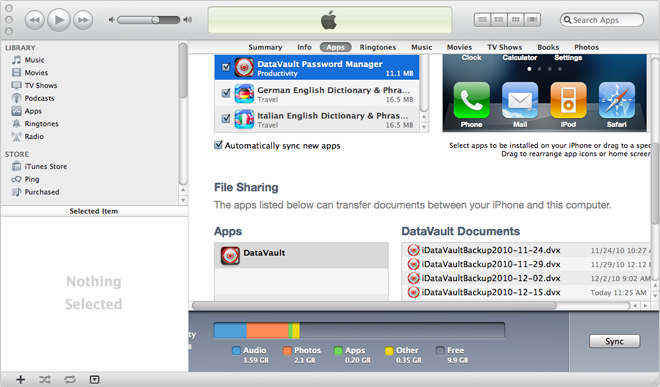
- Click on the iTunes Apps tab, select DataVault and scroll to the File Sharing section at the bottom of the page (see screen shot below).
- Select a backup file and click on the Save to... button to make a copy on your desktop.
To restore from a DataVault backup on your desktop, follow the steps below.
- Start iTunes on your desktop and connect your device.
- Click on the iTunes Apps tab, select DataVault and scroll to the File Sharing section at the bottom of the page (see screen shot below).
- Click on the Add button and select a DataVault backup file (*.dvx) on your desktop.
- Synchronize iTunes with your device.
- Start DataVault for iOS and tap on the tools icon to display the Options menu.
- Tap on Restore then select the appropriate backup for the list. On iPhone or iPod Touch, you may need to tilt the device
horizontally to see the complete file name.
See Apple's knowledge base