|
|
|
DataVault Home Page
|
|
FAQs for other DataVault versions: iPhone/iPod/iPad,
Windows, Mac
OS
|
|
|
Ascendo DataVault for BlackBerry & Windows Bundle
Frequently Asked Questions (FAQ) |

|
|
Click on the links below for answers to the following questions.
More detailed explanations can be found in the Ascendo DataVault for BlackBerry & Windows User Guide.
|
|
|
|
Skip to
Registration Key Issues
|
|
|
|
- How do I download and install
DataVault for BlackBerry?
|
|
- How do I download and install
DataVault for Windows desktop?
|
|
- Can
I try DataVault before deciding if I want to purchase it?
|
|
- How long it the
trial period?
|
|
- What are the requirements to run Ascendo DataVault?
|
|
- What should I
do if I see the error message "No additional applications designed for your device were
found."?
|
|
- What should I do
if I see the error message "No Applications were found for your device."?
|
|
- What should
I do if I see the error message "There is an XML syntax error on line 1."?
|
|
- What should
I do if I see the error message "907. Invalid COD."?
|
|
- Can I install and run
Ascendo DataVault from a USB drive?
|
|
- Can I run the
DataVault Desktop on an Mac?
|
|
- Is there an iPhone version of Ascendo DataVault?
|
|
- Can I use Ascendo DataVault on multiple devices?
|
|
- My trial period expired before I was able to spend sufficient time testing. Is it possible to have the trial extended?
|
|
- When I try to purchase Ascendo
DataVault, I am being asked for my PIN. What is a PIN and how can I find it?
|
|
- What payment
options are available to purchase your software?
|
|
- How do I upgrade and how much does it cost?
|
|
- What is Download Protection?
|
|
- What are Registration Keys?
|
|
- When I enter my registration key, DataVault displays a
"Wrong Code" message.
|
|
- I can't find my Registration Key. How do I retrieve it?
|
|
- I changed handsets. How
do I obtain a Replacement Registration Key for my new handset?
|
|
- I purchased the
software through BlackBerry App World. How do I obtain or retrieve
my registration key?
|
|
- When I purchased
DataVault, I entered the wrong PIN number and the
registration key I received does not work. What should I do?
|
|
- In some cases I cannot install a new version without deleting the older one from my device. How do I uninstall an application from my BlackBerry?
|
|
- I am having difficulties importing data from a third party application.
What are my options?
|
|
- I am having problems importing a SplashID vID file. What could be the
problem?
|
|
- How can I import RoboForm items into DataVault?
|
|
- I am having problems synchronizing Ascendo DataVault for BlackBerry
with the Ascendo DataVault Desktop. What could be the problem?
|
|
- I am trying to synchronize DataVault using the BlackBerry Desktop
Manager on a Windows Vista machine. When I click on the following
menu options: Synchronize > Configuration > Configure Add-Ins
there are no check boxes to activate the applications in the list. Is
there a work-around?
|
|
- Once I've entered information into the application, how can I back it up
and restore it if there is a problem?
|
|
- What should I do
if I see the error message "net.rim.device.api.crypto.CryptoIOException"
when trying to set up the master password on my BlackBerry?
|
|
- What should I do if I see the message
"Passwords on BlackBerry and PC do not match!" even though I think I am using the same password?
|
|
- When synching with the
desktop, a window appears, "Server Busy... Switch To... Retry".
If I press Retry a few more times then DataVault syncs.
|
|
- Why did Ascendo choose
Advanced Encryption Standard (AES) over other encryption techniques?
|
|
- Why could it
be beneficial to encrypt an email message with Ascendo DataVault?
|
|
- When I use
BlueTooth to synchronize DataVault or to beam an item to another
DataVault user, is the information protected from other BlueTooth
users?
|
|
- If my BlackBerry
is stolen, could somebody access the information I store in
DataVault?
|
|
- I downloaded the latest
version of the user guide but a previous version is opened when I click on Ascendo DataVault Desktop
> Help > User Guide. What should I do?
|
|
- How can I get alerted when a new version is available?
|
|
|
|
|
|
| Question: How do I download and
install DataVault for BlackBerry? |
| Answer: There are two ways
to download and install DataVault for BlackBerry, over-the-air (OTA) or by using the BlackBerry
Desktop Manager.
To download and install DataVault for BlackBerry over-the-air (OTA), follow these steps.
- Start the Browser on your BlackBerry.
- Click on the BlackBerry Key to display the screen menu.
- Select "Go To..." from the screen menu.
- For Versions 4.5.3, type http://tinyurl.com/n7azbm
and click on the Return Key. Then follow the prompts to download, install and run the "DataVault Loader". This utility will detect the version of
your BlackBerry OS and load the best version of Ascendo DataVault for your handset. If the DataVault Loader does not
appear after installation, close the BlackBerry Browser and/or restart the DataVault Loader from the BlackBerry home screen or Download directory.
- For Version 3.55 (all models), type http://tinyurl.com/yjj494
then click on the Return Key and follow the prompts to download, install and run
DataVault.
If you have used these URLs to install previous versions, you should clear the browser cache and refresh the page to make sure you are downloading the most recent
version.
To download and install DataVault for BlackBerry using the BlackBerry
Desktop Manager, follow these steps.
-
Download the Ascendo DataVault ZIP file using a Desktop Browser such
as Firefox or Internet Explorer.
- For Version 4.5.3, click here.
- For Version 3.55, click here.
-
Extract the files in the Ascendo DataVault ZIP file using Windows
Vista, 7Zip, Winzip
or a similar utility.
-
Start the BlackBerry Desktop Manager.
-
Click on Application Loader, then click on Add Program.
-
Browse to the "/BlackBerry" directory of the folder you
specified when you extracted the Ascendo DataVault ZIP file.
-
Select the Ascendo DataVault ALX file and follow the prompts.
To manage information on your PC and synchronize with your BlackBerry, you will need to download and install the Ascendo DataVault Desktop, see above.
|
|
|
Question: How do I download and
install DataVault for Windows desktop?
|
|
Answer: Please
note, the version of DataVault for Windows found below can only be unlocked with
a registration key for the "DataVault for BlackBerry & Windows"
bundle. If you do not plan to use DataVault for Windows to synchronize
with DataVault for BlackBerry, please click here
for installation instructions.
To install
DataVault for Windows desktop for use with DataVault for BlackBerry, follow the
steps below.
-
Download the Ascendo DataVault ZIP file using a
desktop browser such
as Firefox or Internet Explorer.
- For Version 4.5.3 click here.
- For Version 3.55, click here.
-
Extract the files in the Ascendo DataVault ZIP file using Windows
Vista, 7Zip, Winzip
or a similar utility.
-
Start the Windows File Explorer.
-
Browse to the "/Desktop" directory of the folder you
specified when you extracted the Ascendo DataVault ZIP file.
-
Double-click on the DataVaultSetup.exe file and follow
the prompts.
|
|
| Question:
Can I try DataVault before deciding if I want to purchase it? |
|
Answer: Yes,
you can try DataVault for free for the duration of the trial period by selecting "Register Later" from the start screen menu. To continue using Ascendo DataVault after the trial
period, you must purchase the product from Ascendo or one of our sales
partners.
|
|
|
Question:
How long it the trial period?
|
|
Answer:
The trial period is currently 20 days plus 10 sessions.
|
|
|
Question: What are the requirements to run Ascendo DataVault?
|
|
Answer: Ascendo
DataVault for BlackBerry require BlackBerry OS 4.0 or above and 300k of
available disk space. If you would like to use DataVault on BlackBerry OS 3.9
and below, please write to info@ascendo-inc.com.
Ascendo DataVault Desktop requires
Microsoft Windows 2000, XP or Vista and 2.5Meg of free disk space.
|
|
|
Question: What should I do if I see the error message
"No additional applications designed for your device were found."?
|
Answer: This is
a common issue with the BlackBerry Desktop Manager and does NOT necessarily mean
that the application is incompatible with your handset. See below for possible
resolutions.
- Delete any previously installed versions of
the software then make sure that you have removed the application from the
BlackBerry Desktop Manager Application List, displayed when clicking on the
Application Loader icon.
- Verify that your .alx and .cod files are in
the same directory and that you are selecting the .alx file when trying to
install an application.
- Upgrade your BlackBerry Desktop Manager.
Click here
for latest downloadable version.
- Upgrade the device software on your
BlackBerry. Click here
for latest downloadable version.
An article with more detailed descriptions can
be found on AllBlackBerry.com, click here
for complete article.
If these suggestions to not resolve the issue, please
try downloading and installing the application directly to your handset (OTA),
as describe above.
|
|
|
Question: What should I do if I see the error message
"No Applications were found for your device."?
|
|
Answer: This is a common problem with the BlackBerry Desktop Manager. There are a few possible solutions:
1. If you installed a previous version of DataVault, use the BlackBerry Desktop Manager to uninstall it. Then delete DataVault from the application list and
and reinstall it. To do this, start the BlackBerry Desktop Manager on your PC, click on the Application Loader button, un-check the box next to Ascendo DataVault, click on the Next button
and follow the prompts. Now return to the application list, highlight Ascendo DataVault and click on the Delete button. To reinstall DataVault, click on the Application Loader button, browse
to the directory containing DataVault.alx, highlight it, click on the Next button and follow the prompts.
2.
Download and install the latest version of the BlackBerry Desktop Manager and
try to install the application again. 3.
Download and install the application directly to your BlackBerry (OTA), as
describe above.
4.
Check if you are using Version 3.6 of the BlackBerry Desktop Manager ( Help > About
Desktop Manager). The workaround for this issue is to install the latest service pack (Service Pack 3a) for Desktop
Manager v3.6 instead of Service Pack. This can be downloaded from the BlackBerry site at: https://www.blackberry.com/SoftwareDownload/index.jsp?client=Ud4RBlehp
Choose "BlackBerry Desktop Software v3.6" from the drop-down list box,
then click on the "Select" button. Choose the latest service pack at
the bottom of the page. Uninstall your original
Desktop Manager first, then install the downloaded service pack. Be sure to
reboot your computer after completing the installation. Follow the instructions
to download the Desktop Manager service pack to your desktop computer.
5. Some users have reported the following work
around... Exit the BlackBerry Desktop Manager. Change the name of
the ALX file, for example, change "ApplicationName.ALX" to
"ApplicationName1.ALX". Then
restart the BlackBerry Desktop Manager and try to install the application again.
|
|
| Question: What should I do if I see the error message
"There is an XML syntax error on line 1."? |
| Answer: This happens when you
select a file with a .cod extension. To install Ascendo DataVault using
the BlackBerry Desktop Manager, click on Application Loader, click on
Add, select "All Files (*.*)" from the "Files of
Type" drop-down list, then select "DataVault.alx". |
|
| Question: What should
I do if I see the error message "907. Invalid COD."? |
| Answer: Usually this happens when you
try to upgrade to a new version Over-the-Air (OTA) without uninstalling your old version.
Please backup your data using Blackberry Desktop Manager,
then uninstall the previous version, and install the latest version using instructions from this FAQ page. |
|
| Question: Can I install and run
Ascendo DataVault from a USB drive? |
| Answer: Yes. When the DataVault
installer prompts you to "Choose an Install Location", click
on the Browse button then select your USB drive. Once you have installed
DataVault, select "Move data file..." from the File menu and
select your USB drive.
If you start DataVault without connecting
your USB drive, DataVault will prompt you to enter a new master password
twice and attempt to create a new database on the local drive. To continue
using the database on your USB drive, click on the Cancel button, then
connect the USB drive and restart DataVault. If you create a new master
password by accident, quit DataVault and click on the Ok buttons when
"Failed to create database..." is displayed, then connect your USB
drive and restart DataVault.
|
|
| Question: Can I run the
DataVault Desktop on a Mac? |
| Answer: We are currently beta
testing DataVault for Mac OS and expect to launch in a few weeks. The
initial version will synchronize with DataVault
for iPhone, iPod Touch & iPad. Subsequent releases will synchronize with
DataVault for
BlackBerry.
The beta program is currently limited to customers of
DataVault for iPhone, iPod Touch & iPad. If you are interested in participating, please email
info@ascendo-inc.com and include "DataVault Mac Beta" in the
subject.
|
|
| Question: Is there an iPhone version of Ascendo DataVault? |
| Answer: Yes, Ascendo DataVault for iPhone is available
from iTunes. For more information,
click here. |
|
|
Question: Can I use Ascendo DataVault on multiple devices?
|
|
Answer: You but you must purchase one license for
each BlackBerry device on which you wish to use Ascendo DataVault.
|
|
| Question: My trial period expired before I was able to spend sufficient time testing. Is it possible to have the trial extended? |
| Answer: When the trial period
is finished, you will be prompted to purchase & register DataVault
or to extend the trial for a
certain number of user sessions. If the user sessions run out, you will
need to purchase & register DataVault to continue using it or wait
until a new version is available. Installing an new version will reset the trial period. If you don't want to
wait for a new version, we suggest looking through the user guide to get an idea of the features and user interface. Ascendo DataVault comes with a
90-day money back guarantee. |
|
| Question: What payment options
are available to purchase your software? |
| Answer: Ascendo accepts most
major credit cards or debit cards for purchases made directly from our web
site. Ascendo Sales Partners such as Mobihand,
Handango
and Clickapps
accept payment by Paypal.
|
|
|
Question: When I try to purchase
DataVault I am being asked for my PIN. What is a PIN & how can I find it?
|
|
Answer: A PIN is a unique identifier for
your BlackBerry handset containing 8 alphanumeric characters. When you start
Ascendo DataVault on your BlackBerry, your PIN is displayed on the registration
screen. Another way to obtain your PIN is to go to the BlackBerry home screen,
click on the icon for Settings, then click on the icon for Options and select Status from the list. Your handset's PIN will be
displayed near the bottom of the screen.
|
|
|
Question: How do I upgrade and how much does it cost?
|
|
Answer:
Upgrading to an
intermediate release, such as from version 4.0 to 4.1: Free
Upgrading to a new version, such as from version
3.0 to 4.0: $9.95
To upgrade to an intermediate release, follow the
instructions to download the latest version and install from your
desktop or install directly to your device. If you are
prompted for a registration key, enter the key that you received when you
purchased the product. If you didn't keep a copy of the key, see elsewhere in
this FAQ for retrieving keys.
To upgrade to a new version, follow these
instructions.
- If you purchased from our web site, please
email info@ascendo-inc.com.
- If you purchased from Mobihand.com, go to the
description
page and click on the "Buy an Upgrade" link.
- If you bought from Handango.com, email info@ascendo-inc.com and ask for instructions.
- If you bought from another Sales Partner,
please see their web site for information on upgrades.
If you have difficulties, or the Sales Partner
you purchased from does not offer upgrades, please email your order confirmation
to info@ascendo-inc.com. To be
considered for eligibility, your order
confirmation must contain the Name of the Ascendo Sales Partner you purchased
the product from, the Version Number and the Date of
Purchase.
|
|
|
Question: What is Download Protection?
|
|
Answer:
Download Protection is a service offered by Handango. You should refer to Handango.com
for a current description. Download Protection is not required to
download Ascendo DataVault from our web site, see above.
|
|
|
|
Registration Key Issues 
|
|
It is very important that you read the the
answers below carefully and follow the instructions to receive a
registration key.
|
|
| Question: What are Registration
Keys?
|
| Answer:
Registration keys must be entered when prompted to continue using
DataVault after the trial period is over. You must purchase DataVault to
obtain a registration key. Some Ascendo Sales Partners refer to
registration keys as activation codes but they are the same
thing.
|
|
| Question: When I enter my
registration key, DataVault displays a "Wrong Code" message. |
| Answer: There could be several
reasons for receiving a "Wrong Code" message when entering
your registration key.
1) You left the PIN field blank when
trying to register the desktop.
2) You are entering the wrong key for
the version you installed. Registration keys for Ascendo DataVault are
in the following format.
- Ascendo DataVault for BlackBerry
Version 4.x: 5-digit code based on your handset's PIN.
- Ascendo DataVault Desktop Version
4.3 and above: BlackBerry PIN and same 5-digit code as on
BlackBerry.
- Ascendo DataVault Desktop Version
4.0 to 4.2:
10 digit code.
- Ascendo DataVault for BlackBerry
Version 3: 10 digit code.
- Ascendo DataVault Desktop Version 3:
10 digit code.
For versions 4.0 to 4.2, the registration key for your
BlackBerry is at the top of the email and the registration key for the
Desktop is further down the page.
3) The PIN you submitted when
purchasing Ascendo DataVault Version 4 is incorrect. Please check the
PIN on the About screen of Ascendo DataVault for BlackBerry and verify
that you are not mistaking "B" for "8",
"A" for "4", etc.
4) You mistyped the registration key
into Ascendo DataVault. Please verify that you haven't transposed
numbers, left out a number, etc. |
|
| Question: I
can't find my Registration Key. How do I retrieve it?
|
| Answer:
You must purchase
Ascendo DataVault to receive a Registration Key. Your Registration Key can
be found in your email order confirmation or in the "My World"
tab of BlackBerry App World. If you have already registered DataVault,
then you can also find it on the About screen. If you can't find your Registration Key in
any of these places, then follow the instructions below.
First, check the version you
purchased as this will be necessary to retrieve the right key. If you want to
upgrade to a new version, then follow the instructions in the upgrade
policy to receive a new registration key.
If you purchased Ascendo DataVault from
one of our Sales Partners, then you must contact them directly to retrieve your
Registration Key. See below for links to initiate the process.
If you purchased Ascendo DataVault from our web
site, please forward your order confirmation containing the product name,
version and order date, to info@ascendo-inc.com.
Clearly state at the beginning of your email that you purchased Ascendo
DataVault directly from our web site (http://www.ascendo-inc.com).
|
|
| Question: I changed handsets. How
do I obtain a Replacement Registration Key for my new handset?
|
|
Answer: First, check the version you
purchased and read our upgrade policy. If a new version
exists and you want to upgrade, then follow the instructions in the upgrade
policy to receive a new registration key. If you purchased the most recent
version, then install the latest maintenance release on the
new handset and follow the instructions below.
If you purchased Ascendo DataVault from
one of our Sales Partners, then you must contact them directly to obtain a
Replacement Registration Key. See below for links to initiate the process.
If you purchased Ascendo DataVault from our web
site, please forward your order confirmation, or send an email containing the product name,
version, order date and the email address you used to purchase the application to info@ascendo-inc.com.
Clearly state at the beginning of your email that you purchased Ascendo
DataVault directly from our web site (http://www.ascendo-inc.com).
|
|
|
Question:
I purchased the software through
BlackBerry App World. How do I obtain or retrieve my registration key?
|
|
Answer: To find
Registration Keys or "License Keys" for products purchased through
BlackBerry App World, start BlackBerry App World on your device, click on the
"My World" tab on the lower right-hand side of the screen then click
on an application from the list to display the application details. The
registration key should be displayed next to the "License:" label.
More information can be found
in the App World FAQ found at the following link:
http://na.blackberry.com/eng/support/blackberryappworld.jsp
|
|
|
Question:
When I purchased DataVault, I entered the wrong PIN number and the
registration key I received does not work. What should I do?
|
|
Answer: If you
purchased DataVault from an Ascendo Sales Partner such as Mobihand or Handango,
send the correct PIN to company's customer support and request a new
registration key. Contact
the sales partner that you bought the application from, submit the correct PIN
and request a new registration key (see links in the question above). If you purchased the application from our web
site, please forward the order confirmation including the date of purchase, to info@ascendo-inc.com.
|
|
|
Question: In some cases I cannot install a new version without deleting the older one from my device. How do I uninstall an application from my BlackBerry?
|
|
Answer:
Start
the BlackBerry Desktop Manager, select Application Loader, uncheck the box next
to the application you want to uninstall, confirm deletion. To uninstall from
your device select Settings > Options > Advanced Options > Applications
> Delete. This exact menu choices may vary slightly depending on the version
of the BlackBerry OS you are using.
|
|
| Question:
I am having difficulties importing data from a third party application.
What are my options? |
| Answer:
DataVault
supports importing files in native format from Cryptmagic, SplashID, Illium eWallet, Code Wallet,
Flex Wallet, Handy Safe, Spb Wallet, Turbo Passwords, Minisafe,
Password Plus, Roboform, Internet Explorer and Firefox. In addition,
DataVault can import text files in Comma Separated Values (*.CSV)
format. If the native format of a third party application is not
supported, you may be be able to export to a CSV file, then use the
DataVault Desktop field-mapping feature to import the data. For more
information, see the section on Importing
Items in the DataVault User
Guide. |
|
| Question:
I am having problems importing a SplashID vID file. What could be the
problem? |
| Answer:
When
you export data from the SplashID Desktop, you will be prompted to enter
an optional password. You must leave this password blank in order to
import the vID file into DataVault. |
|
| Question:
How can I import RoboForm items into DataVault? |
| Answer:
To
import from RoboForm, save your RoboForm items in an .HTM file using the
"Print" menu and then import the file into DataVault using
Tools > Import > RoboForm menu. |
|
| Question: I am having problems synchronizing Ascendo DataVault for BlackBerry
with the Ascendo DataVault Desktop. What could be the problem? |
| Answer:
Ascendo
DataVault uses the BlackBerry Desktop Manager to synchronize. There are
issues with certain versions that may be addressed by one of the
following workarounds.
1. If synchronization doesn't work,
please start the BlackBerry Desktop Manager, select Synchronization,
select Configure Add-Ins, and make sure that you have checked the box
next to Ascendo DataVault. Then check off the Run Add-Ins box and click
on the Synchronize button. See Synchronization section of the online
user guide for more information. http://www.ascendo-inc.com/UserGuides/DV/DV4UGC5.html
If you do not see Ascendo DataVault in
the list of BlackBerry Desktop Manager Add-Ins then restart your PC and
re-install the latest version of Ascendo DataVault Desktop without
the BlackBerry Desktop Manager running in the background. You may have
to repeat this more than once.
Important: Please make sure that you are installing and running all programs: Blackberry Desktop Manager, Ascendo DataVault Desktop installer (DataVaultSetup.exe file), and Ascendo DataVault Desktop as Administrator of the computer.
2. Reboot your BlackBerry handset by
removing the USB cable and battery for 3-5 seconds. Restart your PC.
3. If you have tried the steps and
synchronization doesn't work, please try to install the most recent
version of Ascendo DataVault for BlackBerry and Ascendo DataVault
Desktop.
If you are still having problems,
please send an email to wallet_support[AT]ascendo-inc.com including
the your Version of Windows and Service Pack Number, version of
Blackberry Desktop Manager and the version of Ascendo DataVault. |
|
| Question:
I am trying to synchronize DataVault using the BlackBerry Desktop
Manager on a Windows Vista machine. When I click on the following
menu options: Synchronize > Configuration > Configure Add-Ins
there are no check boxes to activate the applications in the list. Is
there a work-around? |
| Answer:
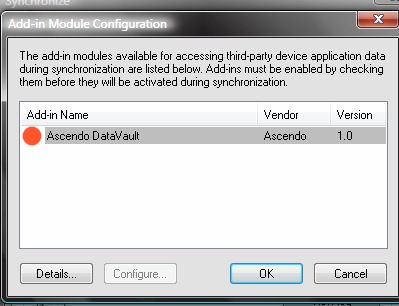
This
is a known issue with the BlackBerry Desktop Manager. The proposed work-around is to click in the window to
the left of the application name where the check box normally appears
(see red button below). The check box will not appear but the Add-in
will be activated and the application should Synchronize correctly.
We alerted BlackBerry Technical Support and we are awaiting a response.
|
|
| Question:
Once I've entered information into the application, how can I back it up
and restore it if there is a problem?
|
| Answer:
Users of DataVault V3
- Select Backup from the DataVault
Desktop File Menu.
- Specify a file name and directory to
store the backup file in.
- To restore, select Restore from the
DataVault Desktop File Menu.
- Browse to the file that you made on
your last Backup.
- Be aware that restoring will delete
all current entries in the DataVault Desktop.
Users of previous versions of DataVault
- Connect your Blackberry to your PC
using the data cable.
- Start the Blackberry Desktop
Manager.
- Select Backup & Restore.
- Select "Perform Selective
Backup..." by pressing the "Advanced..." button.
- Move the slider bar under
"Handheld Databases" down to "RMS Databases" and
highlight this entry.
- Click on Left Arrow to backup all
application data to your desktop.
- If you lose the data on your
Blackberry, you can restore it from your Desktop by highlighting RMS
Databases under Desktop File Databases and clicking on the Right
Arrow.
|
|
|
Question: What should I do if I see the error
message "net.rim.device.api.crypto.CryptoIOException" when trying to set up the master password on my BlackBerry?
|
|
Answer:
Set the password on your BlackBerry to the be same as the password on your
DataVault desktop and try again.
|
|
|
Question: What should I do if
I see the message "Passwords
on BlackBerry and PC do not match!" even though I think I am using the same
password?
|
Answer:
Follow these steps to verify that your passwords match.
- Start DataVault on your BlackBerry. A dialog box will appear asking you to enter a password.
- Move to the Mask/Unmask check box and un-check it. In older versions of DataVault for BlackBerry, click on
the track wheel or track ball to display the screen menu and select Unmask.
- Start the Ascendo DataVault Desktop. A Window will appear asking you for your password.
- Un-check the Mask checkbox.
- Verify that the passwords on your BlackBerry and Desktop are the same or change them so they match.
- Restart DataVault on your BlackBerry and Desktop and try to Synchronize again.
Please note that DataVault passwords are
case sensitive.
|
|
|
Question: When synching with the
desktop, a window appears, "Server Busy... Switch To... Retry".
If I press Retry a few more times then DataVault syncs.
|
|
Answer:
This is a well documented Windows issue that occurs in some circumstances when
several application windows are open and one application is requesting
user input. If you get this message, please check the task bar for an open
dialogue window which is waiting for your input.
|
|
|
Question: Why did Ascendo choose
Advanced Encryption Standard (AES) over other encryption techniques?
|
Answer:
On October 2, 2000, the National Institute of Standards and Technology (NIST)
announced the selection of the Rijndael algorithm as the new Advanced
Encryption Standard. The announcement concluded a 4-year effort working
with government, industry and academia from throughout the world. There is
a broad consensus that AES is the best encryption technique available at
the current time. For more information, see the following links.
- Advanced Encryption Standard (AES) - Questions and Answers (NIST)
- AES vs. Blowfish: AES Offers US-Approved Alternative.
- Rijndael was chosen to be the new AES because it was deemed to be more secure than Blowfish.
|
|
|
Question:
Why could it be beneficial to encrypt an email message with Ascendo
DataVault?
|
|
Answer:
Unprotected emails sent over the Internet follow a path that you have no
control over. There have been many reports of emails being intercepted
with Traffic Monitoring software that searches for keywords like
"password" or "bank account". DataVault uses Advanced
Encryption Standard (AES) to encrypt emails, offering the highest
level of protection available for sensitive communications.
|
|
|
Question: If my BlackBerry is stolen,
could somebody access the information I store in DataVault?
|
|
Answer:
DataVault encrypts your data using Advanced Encryption
Standard (AES),
the official choice of a consortium including leaders in industry,
academics and government. If a person stole your BlackBerry they would
need to know your password to access the data. Resetting the password
erases the data. An alternative method would consist of trying to crack
the encryption key but the NIST estimates that a specialized machine would
take approximately 149 thousand-billion
(149 trillion) years to crack a 128-bit AES key, click here
for more information.
|
|
|
Question:
When I use BlueTooth to
synchronize DataVault or to beam an item to another DataVault user, is the
information protected from other BlueTooth users?
|
|
Answer:
Yes, the data being
transmitted by DataVault via BlueTooth is protected by Advanced
Encryption Standard (AES).
|
|
|
Question: I downloaded the latest version of the user guide but a previous version is opened when I click on Ascendo DataVault Desktop > Help > User Guide.
What should I do?
|
|
Answer:
To resolve this, copy the latest version of the user guide to the
directory in which you installed DataVault. The default directory is
C:\Program Files\DataVault.
|
|
|
Question: How can I get alerted when
a new version is available?
|
|
Answer:
Some Ascendo Sales Partners provide real time
alerts whenever new versions of a product are available. Here are some
that we know of:
In addition, you may want to sign up for our Newsletter, see
Ascendo
Home Page > Subscribe.
|
|
|
|
|
FAQs for other DataVault versions: iPhone/iPod/iPad,
Windows, Mac
OS
|
|
DataVault Home Page
|
|
|