|
DataVault for iOS: Description,
User Guide
DataVault FAQs for: Mac,
Windows,
Android,
BlackBerry
User Guide - Ascendo DataVault Password Manager for iPhone, iPad & iPod Touch
Chapter 7 - Synchronization
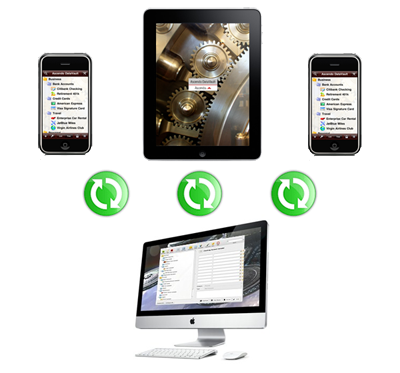
DataVault for iPhone, iPad and iPod Touch can synchronize items, categories and types with DataVault for Mac, DataVault for Windows and other iOS devices
running DataVault.
DataVault implements 2-way synchronization so that all additions, edits and deletions are taken into account regardless of the device on which they
are initiated. If the same piece of information is modified on two devices then DataVault prompts the user to choose which version to keep. This is called conflict resolution.
To synchronize DataVault for iPhone, iPad or iPod Touch with other devices, the passwords on each device must
be the same. You can verify the password on a device by using the unmask feature before you login. To modify a password select Change Password from the Options menu.
Synchronizing Using Dropbox
DataVault for iOS (v4.3.54+) can synchronize with DataVault for Mac (v4.5.4+) or DataVault for Windows (v4.8.21+) using
Dropbox, a popular data storage service. To synchronize using Dropbox you must create a free Dropbox account,
install Dropbox on all devices running DataVault and follow the steps below.
- In DataVault for Mac, select File > Synchronization Settings from the menu bar. Select Dropbox and enter your username and password. Then select File >
Synchronize from the menu bar.
- In DataVault for Windows, select Tools > Synchronization Settings from the menu bar. Select Dropbox and click on the Ok button. DataVault will open the default
browser and go to the Dropbox login screen. Login to Dropbox then select the DataVault confirmation window in the task bar and click on OK. Then select File > Synchronize
from the DataVault for Windows menu bar.
- Start DataVault for iOS. Tap on Tools button in the navigation bar. Select Synchronize > Dropbox and login.
- Tap on Synchronize Now.
If you purchased DataVault Premium, an option should appear in Settings > Synchronization > Dropbox
called "Dropbox auto-sync". If you tap the switch to enable auto-sync, DataVault will keep an encrypted copy of the data file in your
Dropbox cloud storage. When auto-sync is enabled on a device, DataVault will automatically check for updates on Dropbox and prompt you
to sync if necessary. If you make updates on the device, DataVault will update the data file on Dropbox so other devices can sync with them.
Synchronizing Over Wi-Fi
To initiate synchronization, start Ascendo DataVault Desktop,
go to the file menu and select Wireless Synchronization.
Now start Ascendo DataVault on your iPhone, iPad or iPod Touch and tap on the tools icon in the
navigation bar to display the Options menu. Tap on Synchronize > Wi-Fi Network to display a list of
detected devices. Choose the device on which DataVault desktop is running. Verify the IP address and port then tap
on Synchronize Now. A progress circle will appear until synchronization is complete.
iCloud Synchronization
DataVault can automatically update edits made on an iPhone, iPad or iPod Touch to other iOS5 devices using iCloud.
To use DataVault iCloud Sync, follow the steps below.
- If you haven't done so already, create an iCloud account.
- Power off and on your iOS device.
- Login to iCloud on your iOS device by tapping on Settings > iCloud > Account.
- Verify that Settings > iCloud > Documents & Data has been switched ON.
- Start DataVault on your iOS device and verify that the master password is the same on all devices.
- Tap on the tools icon in navigation bar and switch Synchronize > iCloud > iCloud Sync to ON.
- Repeat these steps for all iOS devices.
If you have configured all devices correctly and DataVault edits have not been propagated after several minutes, try quitting and restarting DataVault on each device. If that doesn't resolve the issue,
power off and on each device and try again.
DataVault iCloud Sync will not synchronize with DataVault for Mac or Windows at the current time. For instructions on syncing with DataVault desktops, skip to the sections below.
PLEASE NOTE: Apple has only recently provided developers with access to iCloud synchronization services for application data. In our tests, updates were propogated in as few as a
few seconds but often took considerably longer. As has been reported in Apple Support Communities, reliability
issues with iCloud data synchronization are being addressed in new iOS updates.
If you are having problems using iCloud Sync, troubleshooting information can be found on the DataVault for iOS
Frequently Asked Questions page.
If you are unable to resolve iCloud sync issues using these support resources, we recommend using Dropbox synchronization while waiting for iOS
updates that resolve these issues.
Alternative Synchronization Methods
If you don't have access to a
Wi-Fi router but your desktop has a wireless adapter, then you can setup an
ad-hoc network to synchronize DataVault on your handheld and desktop.
- Setting up an ad-hoc network on a Mac,
click here.
- Setting up an ad-hoc network on Windows, click here.
Troubleshooting Synchronization Issues
Troubleshooting tips can be found in the frequently asked questions or
FAQ page.
If you are still having problems synching please send an email to wallet_support@ascendo-inc.com
|
